
Set Homes
Set Homes gives every player a menu of their homes. Left-click one to teleport. Right-click it to rename it, move it, change its icon, or delete it.
Full documentation | Report a bug | Donate | Discord
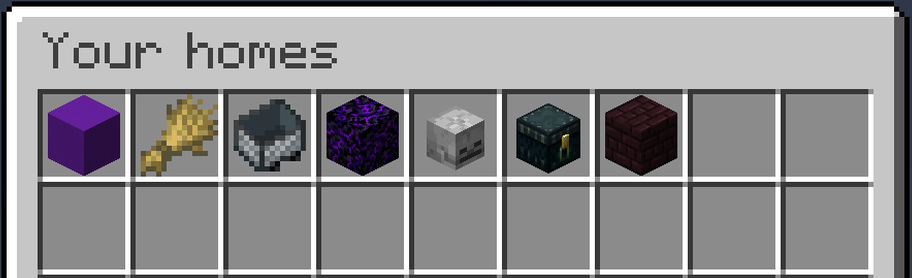
Why Set Homes
- A menu, or a list of commands. Homes live in a chest-style GUI. Players open it with
/homesor by right-clicking the configured "Home Item". - Every home gets its own icon. Pick any Minecraft item when you create a home, or change it later to whatever you are holding. A base, a mine and a farm stop looking identical.
- Rename, move and delete in-game. Right-click any home to manage it. Deleting always asks first, so nobody loses a base to a misclick.
- Teleports that do not kill you. Set Homes checks the destination and relocates you to the nearest safe spot rather than dropping you into blocks, lava, or a fall.
- Switch without losing anything. One command imports every home from EssentialsX or Set Homes v1, and shows you exactly what it will do before it does it.
- Per-rank home limits. Give donors more homes than default players with LuckPerms groups, or set one server-wide limit.
- Permissions you can change from the config. Every
sh2.*node has a sensible default, and any of them can be moved inconfig.yml. No permissions plugin required.
Quick start
- Drop the jar into your
pluginsfolder and restart the server. - Run
/sethome basewhere you are standing. - Run
/homesand click it.
That is genuinely the whole setup. Player permissions default to granted, so your players can create and use homes the moment the plugin loads. See Permissions below if you want to change that.
Commands
| Command | What it does |
|---|---|
/sethome [name] |
Creates a home where you stand. |
/home [name] |
Teleports you to a home. |
/homes |
Opens the homes menu. |
/delhome name |
Deletes a home. |
/uhome name |
Moves one of your homes to where you are standing. |
In these tables, square brackets mark an optional argument. Anything else is required.
Names are optional on /sethome and /home. Leave the name off and both use a home called default. Home names are unique per player and ignore case, so base and Base are the same home.
All player commands, with their long forms
| Command | Long form | What it does |
|---|---|---|
/sethome [name] [icon] [description] |
/create-home |
Creates a home where you stand. With no name it is called default. |
/home [name] |
/go-home |
Teleports you to a home. With no name it goes to default. |
/homes |
- | Opens the homes menu. |
/delhome name |
/delete-home |
Deletes a home. |
/uhome name |
/move-home |
Moves one of your homes to where you are standing. |
/list-homes |
- | Lists your homes in chat. Click a name to teleport. |
/give-homes-item |
- | Gives you the item that opens the menu. |
On /sethome, a second word that names a real item becomes the icon, and everything after it is the description. So /sethome base stone house creates base with a stone icon and the description "house". If you wanted the whole phrase as the description, put d in the icon position: /sethome base d stone house. The reply names the icon it chose, so there is never any guessing.
Admin commands
| Command | What it does |
|---|---|
/set-max-homes [group] number (alias /setmax) |
Sets the home limit, per LuckPerms group or server-wide. |
/get-player-homes player |
Lists another player's homes. |
/home-of player home (long form /go-player-home) |
Teleports you to another player's home. |
/delhome-of player home (long form /delete-player-home) |
Deletes another player's home. |
/uhome-of player home (long form /move-player-home) |
Moves another player's home to where you are standing. |
/blacklist add world... (alias /add-to-blacklist) |
Stops homes being set in a world. |
/blacklist remove world... (alias /remove-from-blacklist) |
Lifts the restriction again. |
/blacklist list (alias /get-blacklisted-dimensions) |
Shows which worlds are blacklisted. |
/import-homes source [confirm] |
Imports homes from another plugin. source is sethomes or essentialsx. Dry-run unless confirm is given. |
The three blacklist commands are one command with three aliases. Nothing you already type changes: /add-to-blacklist world_nether still adds that world, and /get-blacklisted-dimensions still lists them. Give worlds by the name the server knows them by, in lower case, which on a default setup means world, world_nether and world_the_end.
The three commands that take a player accept anyone who has saved homes, whether or not they are online. Tab completion only offers online players, because there is no lookup for every stored name.
Managing homes
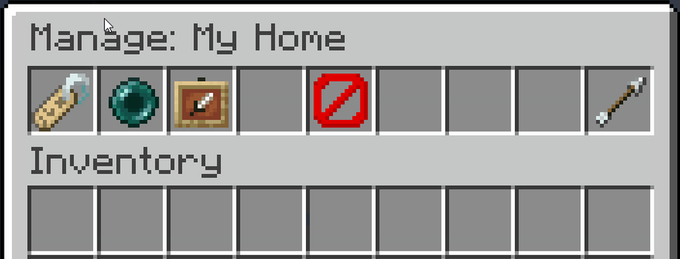
Open your homes with /homes, or right-click the homes item. Then:
| Action | What happens |
|---|---|
| Left-click a home | Teleports you there |
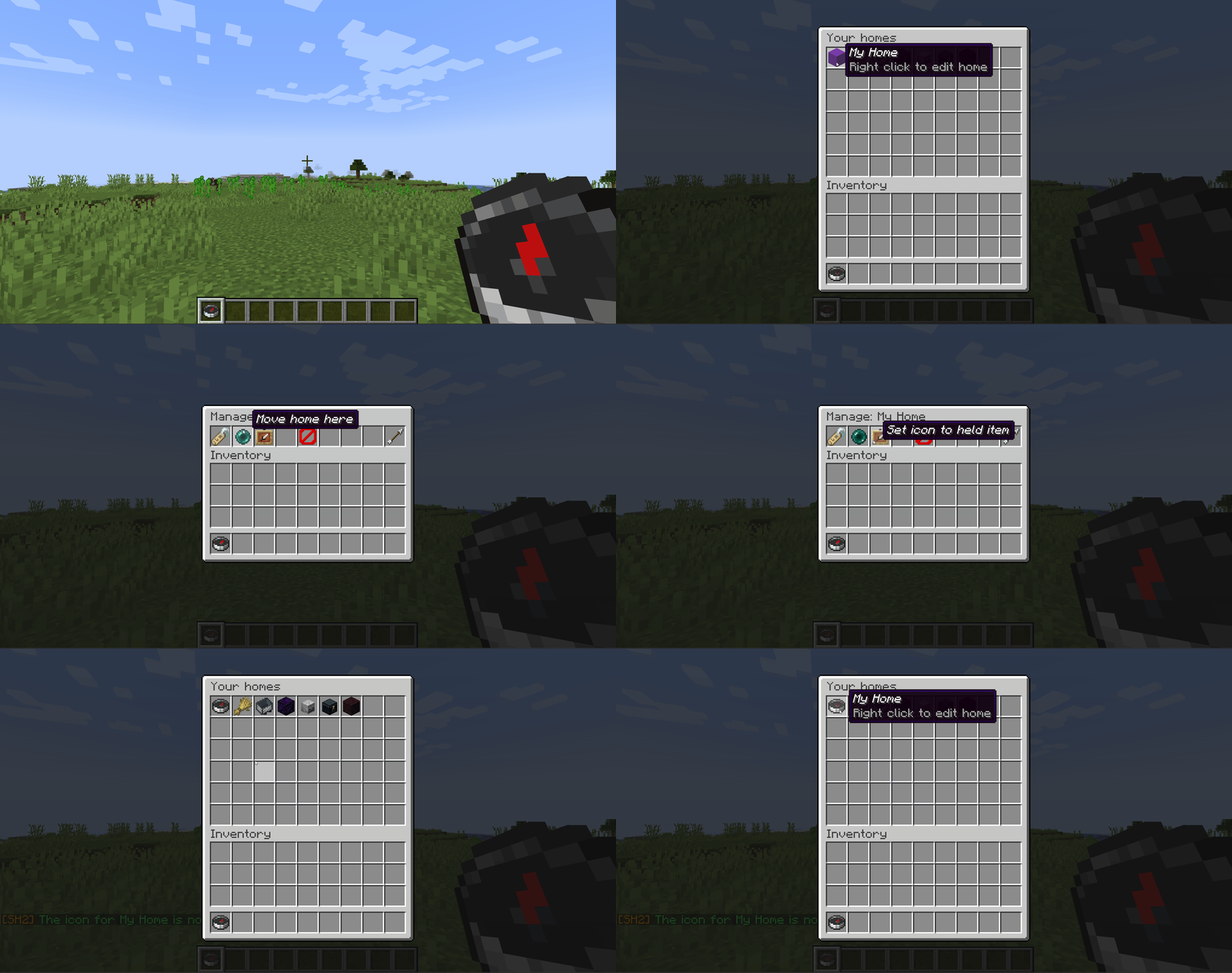
| Right-click a home | Opens the management menu below |
| Rename | Opens an anvil prompt for the new name |
| Move home here | Repoints the home at where you are standing |
| Set icon to held item | The home's icon becomes whatever you are holding |
| Delete | Asks for confirmation first |
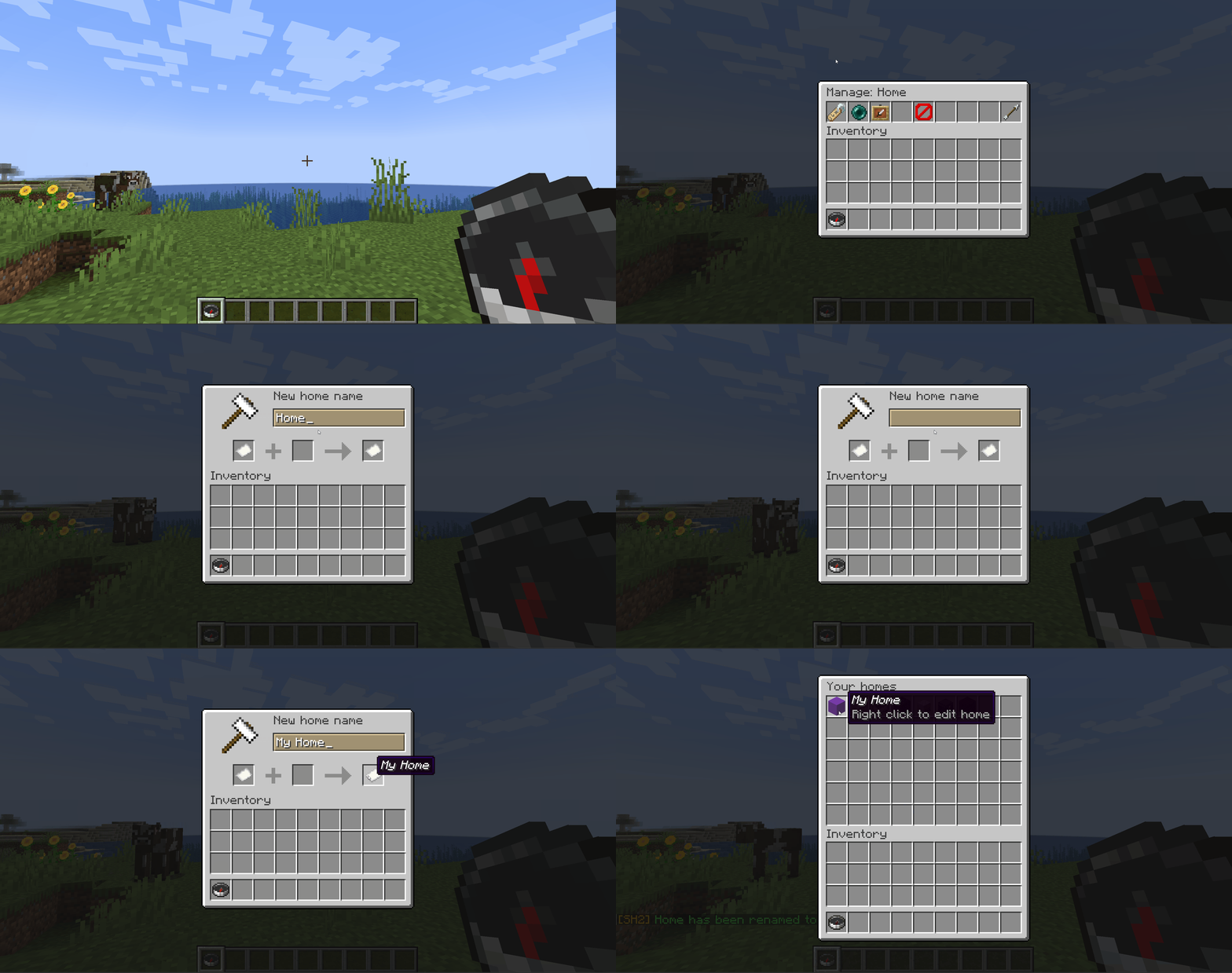
The management menu is controlled by sh2.manage-homes, which defaults to granted.
Changing a home's icon works the same way. Hold the item you want and click Set icon to held item:
Teleporting
By default players wait three seconds before a teleport fires, and moving cancels it, so a home is not a free escape from a fight. Set delay: 0 for instant teleports, or cancelOnMove: false to let players walk during the countdown.
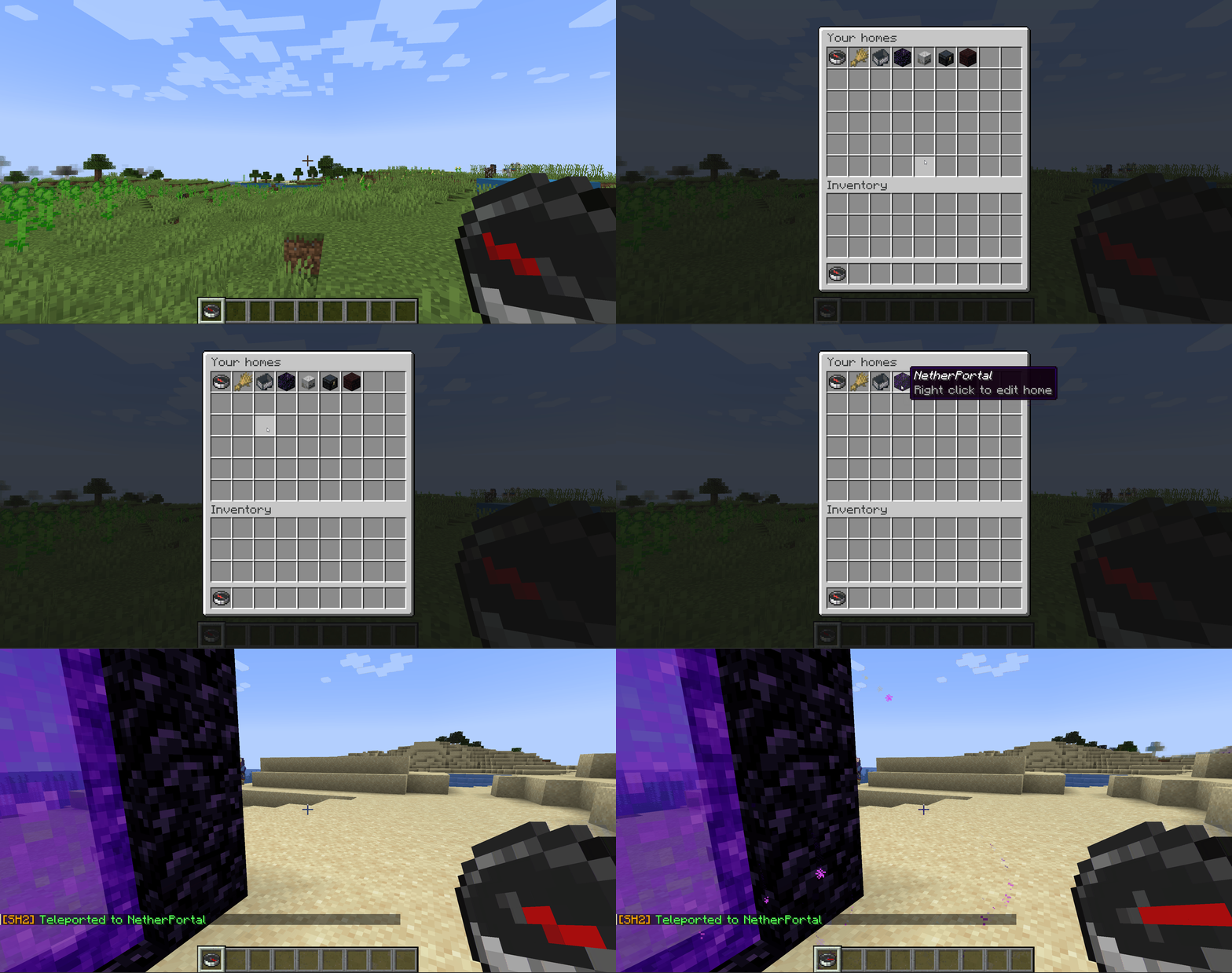
Before it drops anyone anywhere, Set Homes checks the destination is safe to stand in. If a home has been built over, flooded with lava, or left hanging above a drop, the player is moved to the nearest safe spot instead, or the teleport is canceled and they are told why. Turn it off with teleportSafety: false.
Permissions
Nothing here needs a permissions plugin. Out of the box, every player can create, list, teleport to and manage their own homes, and operators get everything else.
Two bundles group the nodes, so you can move a whole role in one line:
| Bundle | Default | Contains |
|---|---|---|
sh2.player |
everyone | sh2.create-home, sh2.go-home, sh2.list-homes, sh2.delete-home, sh2.teleport, sh2.give-homes-item, sh2.manage-homes, sh2.move-home |
sh2.admin |
OP | sh2.player, plus every admin and bypass node |
Full permission list
| Permission | Default | Allows |
|---|---|---|
sh2.create-home |
everyone | Creating homes |
sh2.go-home |
everyone | Using the go-home command |
sh2.teleport |
everyone | Actually teleporting to a home |
sh2.list-homes |
everyone | Listing homes in chat, and /homes |
sh2.delete-home |
everyone | Deleting your own homes |
sh2.give-homes-item |
everyone | Getting the menu item |
sh2.manage-homes |
everyone | Renaming, moving, re-iconing and deleting from the GUI |
sh2.move-home |
everyone | Moving your own home with /uhome |
sh2.set-max-homes |
OP | Setting home limits |
sh2.get-player-homes |
OP | Viewing another player's homes |
sh2.go-player-home |
OP | Teleporting to another player's home |
sh2.delete-player-home |
OP | Deleting another player's home |
sh2.move-player-home |
OP | Moving another player's home |
sh2.add-to-blacklist |
OP | Blacklisting a world |
sh2.remove-from-blacklist |
OP | Un-blacklisting a world |
sh2.get-blacklisted-dimensions |
OP | Listing blacklisted worlds |
sh2.import-homes |
OP | Importing from another plugin |
sh2.update-notify |
OP | Being told on join that a newer release exists |
sh2.bypass-max-homes |
OP | Creating homes past the configured maximum, whether the limit is server-wide or per group |
sh2.bypass-blacklist |
OP | Creating a home in a blacklisted world, moving a home into one, and teleporting to a home already in one |
sh2.bypass-teleport-delay |
OP | Teleporting with no countdown, and not being canceled by moving |
These nodes are granted by the bundles, which is why denying a bundle takes its whole set away at once. Granting or denying an individual node works exactly as the table describes.
Note that sh2.move-home sits in sh2.player, not behind sh2.manage-homes. If you took sh2.manage-homes away to stop players relocating their homes, deny sh2.move-home as well or /uhome gives the ability back.
Changing permissions
Uncomment the permissions: block in config.yml and list the nodes you want to move:
permissions:
  sh2.manage-homes: false
  sh2.get-player-homes: true
  sh2.import-homes: op
Accepted values are true (everyone), false (nobody), op (operators only) and not-op (everyone except operators). A deny applies to operators too, so use op if you want a node gone for everyone except them.
You can name a bundle here as well as a single node, so sh2.player: false moves all eight player nodes in one line. There is no wildcard, so list whatever you want changed. If a line does not seem to take effect, check the server log at startup: anything the plugin could not read is named there.
This only changes a default. If you run LuckPerms or similar, an explicit grant or deny there still wins. The config block decides what happens to a player the permissions plugin says nothing about.
Take care with sh2.import-homes. Anyone who can run /import-homes source confirm can write homes for every player on the server, so granting it to everyone is a real risk.
With LuckPerms, the equivalent one-liner is /lp group default permission set sh2.player true. The server's own permissions.yml works too, and the README has an example of wrapping these nodes in a rank of your own.
Configuration
Settings live in plugins/SetHomesTwo/config.yml on your server, written the first time the plugin starts. Edit it in any text editor, save, then restart the server. There is no in-game reload command, so changes do not apply until the server comes back up.
The file is commented throughout, and every message the plugin sends can be rewritten in it. These are the settings most servers actually change:
| Setting | Default | What it does |
|---|---|---|
delay |
3 |
Seconds you must stand still before teleporting. 0 is instant. |
cancelOnMove |
true |
Cancel the teleport if the player moves during the countdown. |
teleportSafety |
true |
Relocate to the nearest safe spot instead of teleporting into danger. |
maxHomeEnabled |
false |
Turn home limits on. |
maxHomesType |
groups |
singular for one server-wide limit, groups for per-rank limits. |
openHomeItem |
compass |
The item players right-click to open the menu. |
defaultHomeItem |
white_wool |
Icon a home gets when the player names none. |
inventoryTitle |
Your homes |
Title of the homes menu. |
maxHomeNameLength |
32 |
Longest home name allowed. |
permissions |
commented out | Changes the default of any sh2.* node. See Changing permissions above. |
Per-rank limits need LuckPerms and maxHomesType: groups.
That table is only the common settings. For the complete list, see default-config.yml, the file your config.yml is first written from. Every setting the plugin has is in there, commented in place.
Your config.yml is written once and never touched again. Installing the plugin, updating the jar and restarting the server all leave the file exactly as you last saved it, so a setting added in a later release will not appear in a file written by an earlier one. Anything missing falls back to its default, so nothing breaks, but you cannot change a setting you cannot see.
To pick a new setting up, copy the key out of default-config.yml into your file and restart. To start clean, rename your config.yml and restart. A fresh one is written with everything in it, and you can copy your old values across.
Coming from EssentialsX or Set Homes v1
Your players keep their homes. The old plugin does not even need to be running, because the importer reads its data files directly.
- Stop the server.
- Move the old plugin's jar out of
plugins/and keep it somewhere safe rather than deleting it. That jar is your way back. Leave its data folder exactly where it is: the importer readsplugins/SetHomes/orplugins/Essentials/userdata/and never writes to either. - Start the server. Set Homes creates its own folder and an empty database. No homes are visible yet, and the console tells you how many are waiting.
- Run
/import-homes sethomes(or/import-homes essentialsx). This is a preview only. It reports how many homes it would import and warns about any it would skip, and changes nothing. - Happy with the numbers? Run it again with
confirmon the end. - Paste any settings the config report listed into
plugins/SetHomesTwo/config.yml, then restart the server. Nothing is written there automatically, and there is no in-game reload, so a pasted setting does nothing until the server comes back up.
The jar has to move before the import, not after. Set Homes v2 will not start while a Set Homes v1 jar is still in plugins/. Both plugins provide /sethome, /home and /delhome, and v1 usually takes priority and wins those names regardless the load order.
You are reminded until you import. While plugins/SetHomes/homes.yml still holds homes and none have been imported here, every startup says so in the console, and anyone holding sh2.import-homes gets the same reminder in chat on join. Both stop for good once any home exists here.
Existing homes are never overwritten, so re-running the import is always safe. Homes in worlds that no longer exist are skipped with a warning naming the world.
Set Homes v1 told base and Base apart, while home names here ignore case. A player holding both keeps both: the second is imported under the next free name, so Base arrives as Base2, named in the report and the server log.
You can go back at any time. The old plugin's data folder is never written to, so rolling back is mostly putting its jar back and taking the Set Homes jar out.
Coming from Set Homes v1, the world blacklist comes across too. The migration guide on GitHub has the full rollback steps and maps every v1 command, permission and config setting to its v2 equivalent.
Requirements
- Paper or Spigot 1.21+
- Java 21, which Minecraft 1.21 servers already require
- Optional: LuckPerms, only for per-rank home limits
Changelog
Every release is listed on the Files tab of this page, and in the changelog on GitHub.
Support
The README on GitHub has the migration tables and an FAQ covering the questions that come up most.
Found a bug or want a feature? Open an issue on GitHub. It gets seen faster than a comment on this page.
Source | Report a bug | Donate | Discord
Comments


-

Xquiset Owner
-

YabaDabaDoo4663 Author
-
View User Profile
-
Send Message
Posted Aug 19, 2026Hey everyone,
Sorry for the long silence here. I know a lot of you left questions and bug reports over the past few years that never got a response, and that’s on us. Life/work got in the way and this project went quiet for way longer than it should have.
Good news: v2.0.0 is now out, and it’s a big update. All your existing commands and functionality still work exactly as before, we’ve just added a lot on new features and bug fixes.
We’re going to be more active going forward. For bug reports or feature requests, please use the GitHub Issues page (https://github.com/Blockframe-Studios/SetHomesTwo/issues) it’s much easier for us to track and respond to than comments here.
We've also created discord as another source to log bugs, ask for feature requests, or if you need general help. Feel free to join: https://discord.gg/casu9hYrF
Thanks for sticking with the plugin, and sorry again for the wait!
-
View User Profile
-
Send Message
Posted Mar 20, 2024so everything works fine but if i want to give my friends more than 1 home and they try to make another home it said they dont have permission while i did the ./setmax group name 3 and i changed in the config to free: 3 any help?
-
View User Profile
-
Send Message
Posted Mar 14, 2024Probably one of the best standalones Homes plugin but...lack of configurations I'd guess.
So I have to learn java and how to compile to get this plugin to my own looking, arf.
-
View User Profile
-
Send Message
Posted Jun 12, 2023so it's been quite a while since I ran a Minecraft server I use plugins similar to this in the past and I want to block people from being able to set homes in the end, the nether and since I'm running a Pixelmon server Ultra space dimension can anyone help me I use the command like this /blacklist add Pixelmon world/DIM-1 and it says I must specify the world name
-
View User Profile
-
Send Message
Posted Apr 2, 2023Is there a way that when I type /home it gives me a list of the homes i have before I execute the command so I don't have to do /homes first?
https://ibb.co/FHyxt3w
In the picture ^ it would list the homes there instead of the player names.
-
View User Profile
-
Send Message
Posted Mar 7, 2023I'm running a server as OP but anyone that doesn't have OP is having issues setting more than one home. The home max for all groups is 10 but the other users are having issues setting up 2. It says they dont have permission to set more than one home.
How do I fix this?
-
View User Profile
-
Send Message
Posted Apr 2, 2023In reply to elizabeatz:
Get luck perms
-
View User Profile
-
Send Message
Posted May 26, 2023In reply to elizabeatz: yes I have the same problem
-
View User Profile
-
Send Message
Posted Jan 2, 2023Greetings. I was wondering if there's a way to access a sethome history?
-
View User Profile
-
Send Message
Posted Aug 13, 2022Hello, I did everything, but still no children
Maybe someone can help

-
View User Profile
-
Send Message
Posted Jun 21, 2022TIL your first home you set using the /sethome command makes your compass point there indefinitely. I was hoping I could navigate the caves from spawn to find slimes using the compass to pinpoint the exact spawn chunk. Can't find the spawn chunk now. The /delhome command does not make a difference. I'm not the serverhost for our group server, so I'm pretty SOL on finding the spawn chunk unless a patch can be rolled out.
Edit: This is a -very- useful mod though, so thanks to the devs for their hard work!
-
View User Profile
-
Send Message
Posted Jun 10, 2022Hi!
Me and my friends on my minecraft server can set unlimited homes nevertheless i set the max home to 3. Can someone help me ? I dont want to have unlimited homes.
-
View User Profile
-
Send Message
Posted Jul 30, 2022In reply to terorista101:
I am late, though that happens because you are all probably operators of your server
-
View User Profile
-
Send Message
Posted Mar 11, 2022Hey!
Me and some friends made a server. We were trying to figure out how to set up the named homes and we got it working. After we changed the world and opened the server to all our friends, it stopped granting me access to the command. Everyone else can set multiple homes but I can only set 1 default home.
When I try to set a named home it says: ''An internal error has occured while attempting to perform this command''
This same error shows when I do /homes, but it does show my Default:home when i type that command.
I have tried adding myself to both admin and default group but none of it fixes the problem
Could you please help on how to fix this problem,
Thank you!
__________________________________________________
This is the Error message in the console if that helps:
___________________________________________________
-
View User Profile
-
Send Message
Posted Mar 11, 2022In reply to Maylaee:
Here is a screenshot of the console after my friend set a home and after i tried to sat a home
-
View User Profile
-
Send Message
Posted Feb 23, 2022Hey. Idk how to give people the permission to use the sethome command. Can someone help me?
-
View User Profile
-
Send Message
Posted Feb 17, 2022Hi !
I'm pretty new to plugins. So I've installed your plugin with LuckPerm and when I'm typing /sethome it says to me "unknown command" can you help me please ?
(I'm on Mohist)
Have a nice day
-
View User Profile
-
Send Message
Posted Jan 6, 2022Kinda nice, I like the overview. Good combination with EssentialsX :)
-
View User Profile
-
Send Message
Posted Dec 13, 2021Hello! We are having issues with setting a maximum number of houses. The config file reflects the limit we set and we get a message in-game confirming the limit too. But "max homes: 0" appears in the console right after and the limit doesn't work. I'm wondering if this is a 1.18 issue?
Thank you!
-
View User Profile
-
Send Message
Posted Dec 4, 2021I believe that the plugin only allows one person to go to their home at once? Since whenever someone tries to go to their home while many others are playing, it says they are already teleporting. Can you help me fix this issue?