Set up Guide
Set up Guide
Depending on how you plan to use VoxieChan set up can be as pain free as any other plugin or, well it can be a bit more involved :/
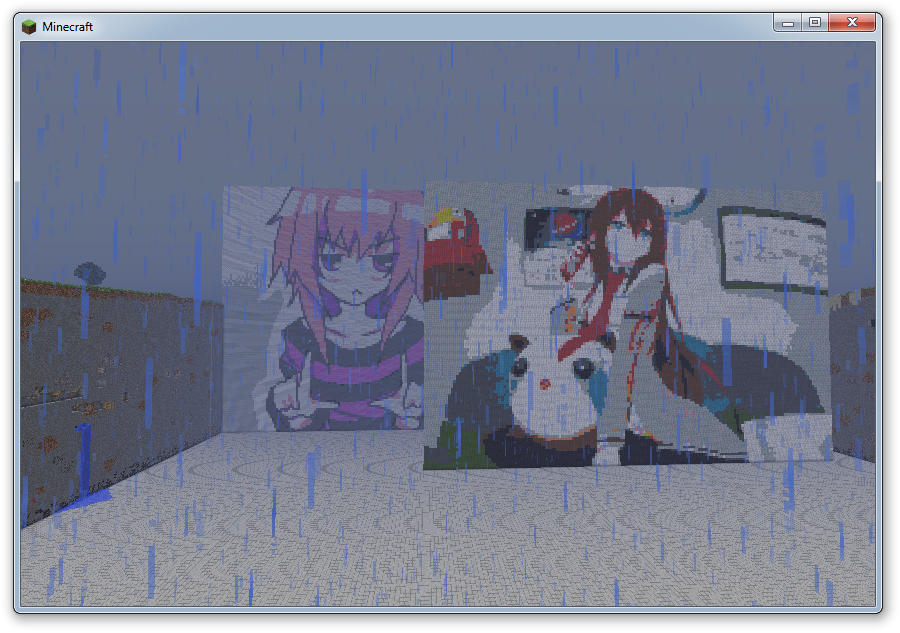
The good news is that if all you want from VoxieChan is image and gif display then all you have to do is drop the plugin in the plugins folder. However this means that all you can display on the screen is images in these formats: png, jpg and gif (animated as well), videos and the functions of channels won't work unless you follow the next steps.
Install Xuggle
Download Xuggle for what ever OS your server is running and install it according to their site.
Hmm, it seems Xuggle won't provide pre built versions for their current or upcoming versions, this makes things tricky. Lucky however they still have past version up on their build server Here
Quick links:
Edits to your start script
Xuggle needs to be added to the servers classpath so that the plugin can make use of it. The only way I know of doing this easily is by adding it to your start script.
For windows it should look something like this (Replace any paths that need to be changed:
java -Xmx2g -Djava.library.path="%XUGGLE_HOME%" -cp craftbukkit.jar;"%XUGGLE_HOME%\share\java\jars\*" org.bukkit.craftbukkit.Main
pause
Linux:
XUGGLE_HOME should be set to where ever you installed Xuggle
#!/bin/bash
export XUGGLE_HOME=/path/to/xuggle
export PATH=$XUGGLE_HOME/lib:$XUGGLE_HOME/bin:$PATH
export LD_LIBRARY_PATH=$XUGGLE_HOME/lib:$LD_LIBRARY_PATH
java -Xmx4g -Djava.library.path="$XUGGLE_HOME" -cp craftbukkit-dev.jar:"$XUGGLE_HOME/share/java/jars/*" org.bukkit.craftbukkit.Main
Mac:
Hopefully you can figure this one out as i don't have a mac. Should be similar to linux.
Comments