
MCLoreChat (Discord lore editor)
Description and Usage
This plugin allows you to host a Discord bot from your spigot server which allows you to edit and add lored items much more easily than most plugins. There are two versions of this plugin; The old one, 1.0, and the new one, 2.0. The 2.0 version is a complete overhaul that allows you to add lore to a "lore queue" which is an inventory you access in the game by typing /dlore GUI. On Discord, you can right-click a message and use the context menu to send it to the Lore Queue Gui after linking your account.
The linking process is simple, and you can link multiple MC accounts to the same discord. Run the /dlore link command and it will give you a pin. Dm that code to the bot and from then on any lore you send will show up in the lore queue of your linked accounts.
To set up the bot, create a discord bot and get its token using Discord's Developer Portal. You can add it to the bot in-server by typing /dlore token [token]. Then do /dlore start and the bot will come online, now linked to the server. Refer to the permissions below to see what permissions are needed in-game. The discord bot just needs permission to read the chat the lore will be in and send messages. Lore can also be sent in DMs. Before you do /dlore GUI, hold the item you want to add the lore to, and then click the lore you want to add.
commands:
dlore:
description: Used for Discord Lore commands. Type /dlore help for detailed information.
permissions:
mclore.*:
description: Gives access to all MCLoreBot commands.
mclore.start:
description: Gives permission to the command to start the bot.
mclore.stop:
description: Gives permission to the command to stop the bot.
mclore.token:
description: Gives permission to set the bot's token.
mclore.link:
description: Gives permission to link your account to a discord account.
mclore.gui:
description: Gives permission to open the lore gui.
mclore.clear:
description: Gives permission to clear your lore queue of all items.
mclore.set:
description: Gives permission to set the lore of the item you're holding to your latest lore.
mclore.dlore:
description: Gives permission to use the main /dlore command.
mclore.send:
description: Gives permission to send lore to your dms using /dlore send.
What is /dlore?
/dlore is a plugin that allows you to copy and paste lore between Minecraft and Discord, facilitating a much smoother loring process by allowing your server to communicate with discord through a bot account.
How does it work?
You need to learn some basic formatting for it to work correctly, but overall it’s pretty simple. You need to send lore (formatted to your specifications) to the bot's DMs or a channel the bot can read, then right-click on the message, click Apps, and click Queue as Lore. The lore will then be available in the interactive GUI to paste over whatever item is desired. Lore can also be sent in the other direction!
Installation
Follow the tutorial here for creating a bot account, and copy its token. Then, put the correct jar for your version into your plugins directory. When you start the server, do /dlore token [token], and then /dlore start. You can do /dlore link to get an invite link to invite it to your chosen server after that. Even if the bot is on a server where people without perms can see or DM the bot, they still have to do /dlore link to add lore to items in-game.
Setup
Before you can use the bot, you need to link it. To do so, run this command:
/dlore link
This will send a four-number code to your minecraft chat. Send this code to the bot in Discord, with no spaces or anything added, and it will automatically link your account between Minecraft and the bot. You’re ready to go!
((In 2.2, for 1.21+, you can also add a line starting with "break:[number.]" It will add a line break after whatever number of characters you specify, ignoring color codes, so that you can determine the maximum length of a line of lore. It will also not interrupt words with line breaks.))
Usage
You should break the lore by lines as you would normally, but you can write whole paragraphs like that with just one character code. For example of exported lore, it would look like this:
Name:&3Example Lore
&bThis lore is an example. It is exemplary in that regard.
&b
&fIn this example, the lore gets sent between
&fthe bot and Minecraft, and the other way around too.
&c
&aYou can also have &2mid-sentence&a changes to the font.

However, if you’re writing fresh lore to the bot, you don’t have to include all of the individual colour codes. To do this, you only have to start the top line with the colour code, and the rest of the lines that follow automatically use that colour code!
For example:
Name:&2Another Example
>&d
This lore only has one colour code per paragraph
and only indicates it at the start. Let's see how
that works!
>&e
Though you can still change it &bmid-sentence&e!
Beep boop beep.

To send the lore, right-click on the message, then click Apps > Queue as Lore. That’s all you need to do for the lore to be in your account, and the bot will confirm that it’s sent.

Once the lore has been sent to you, you can use /dlore gui to open up an interactive UI that will let you apply the lore to the held item. You can store multiple lore snippets at once and apply them.
To delete your lore queue, you can type in /dlore clear !
If you want to avoid the GUI, you can also use /dlore set which will automatically apply your latest queued lore snippet to the item you’re holding.
When you’re holding an item whose lore you’d like to send to the bot, just use /dlore send and the Discord bot will message you the lore, complete with colour codes and line breaks. Excellent for making big edits halfway through the lore.
V1.0 - Legacy Description
The commands for this bot have to be put into a server, with a channel that the bot can see and send messages in. Simply put the name of the designated channel into the config (by default, it's lore-channel) and you can run the Discord commands from there.
!LoreAdd [Playername] [Item]
Name:[Desired item name/color codes/]
>&[Color code] (Whatever you put after a less-than symbol is placed in front of every following line until the next '>'. Generally used for coloring whole paragraphs.)
[Lore goes here]
[You can just do a line break for a new line]
[Or even the next paragraph]
That would result in this item being added to the specified player, as long as you put the correct item name in the third argument line. 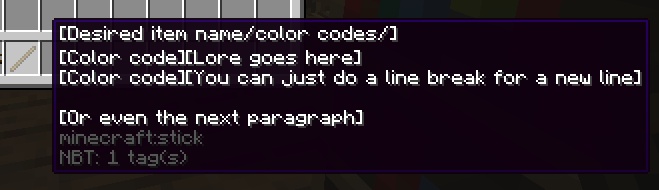
I edited it for the example item, the exact command used to create this item was
!Lorehand Mind stick
Name:&f[Desired item name/color codes/]
>&f[Color code]
[Lore goes here]
[You can just do a line break for a new line]
> &f
[Or even the next paragraph]
The other two Discord commands are !lore help, which displays help for how to use the commands. And !Lorehand. It does exactly the same thing as !Loreadd, except it doesn't require an item argument and it instead overwrites the lore and display name of whatever item you're holding.
The only in-game command so far is /sendlore, which will send formatted lore from the item to the designated channel so that you can edit an existing item easily. It uses the permissions loreitems.send or loreitems.*
Example of use: I held this item, and ran the command.
The bot then sent this message in the designated channel, which I can then use with the !lorehand or !loreadd commands to edit the lore.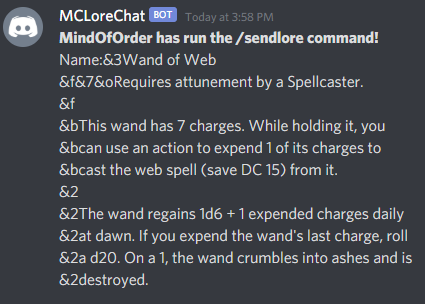
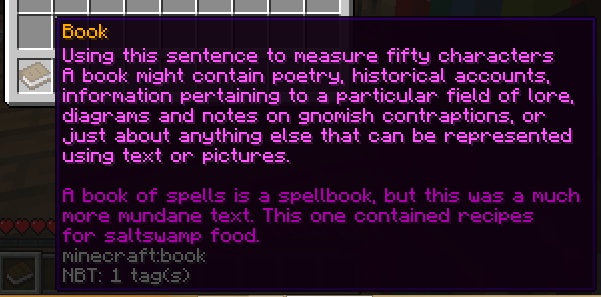
More Examples. It can go up to 255 characters per line, but fifty characters is commonly used where I play for nice-looking paragraphs and easy editing.
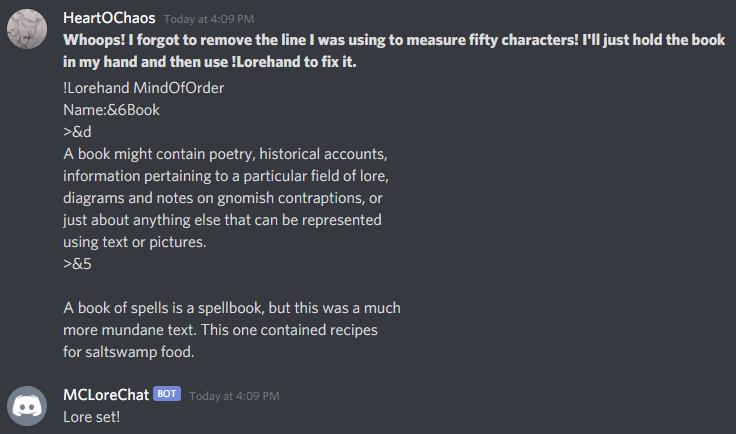
Good as new.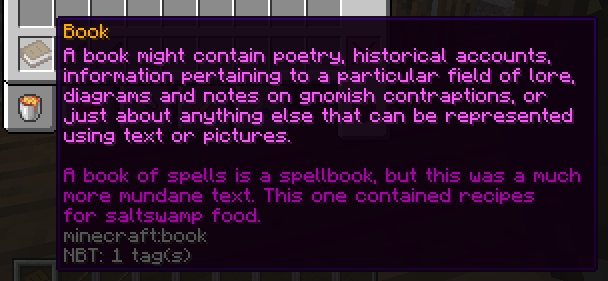
Installation
V1.0
Version 1.0.1 should work on spigot 1.12-1.15.2, and possibly future and past versions as well. If it doesn't, complain at me on Discord and I'll might see what I can do.
Follow the tutorial here for creating a bot account, and copy its token. Then, put the mclorechat.jar into your plugins directory along with the config folder. If you don't have the config folder, it'll generate on startup.
Paste the bot token into the config where it says token, and adjust the designated channel as you like. There's a third option that allows you to disable the !Loreadd command if you'd like players to be able to name their items and add lore, but not insert items into their inventory. Once you have the token in the config, restart the server and it will connect the bot to Discord and generate an invite link. Invite that and presto, you can run commands from the designated channel.
v2.0
Simply add the plugin to the server and start your server. Do /dlore token [the token of a discord bot that you made in the Discord developer portal]. Then do /dlore start, and it will give you a link to invite the bot to any server you need. Anyone on the server can DM the bot or try to add lore, but unless they have permission to do /dlore link in the game (or if they get someone else's link code before they use it, so don't share those) they won't be able to use it.
Contact me at mindoforder on Discord if you have any problems or questions.
This plugin is open source. I'm not sure if I exported it correctly, but all the code is there, so it should be usable in one way or another. The code for version 2.0 can be found here.


-

heartochaos Owner
Comments